
Using Gradescope
Gradescope is the site that we use for grading your code submissions. The grade has two parts: an autograder that gradescope runs automatically, which gives you points based on whether your code works or not; and the manual grading, which we grade for code quality. You will submit homework, project, and progress check code to gradescope.
How to Submit to Gradescope
To submit an assignment on Gradescope, first go to the Canvas page for the homwork, project, or progress check. Click the button that says Load Homework ... in a new window.
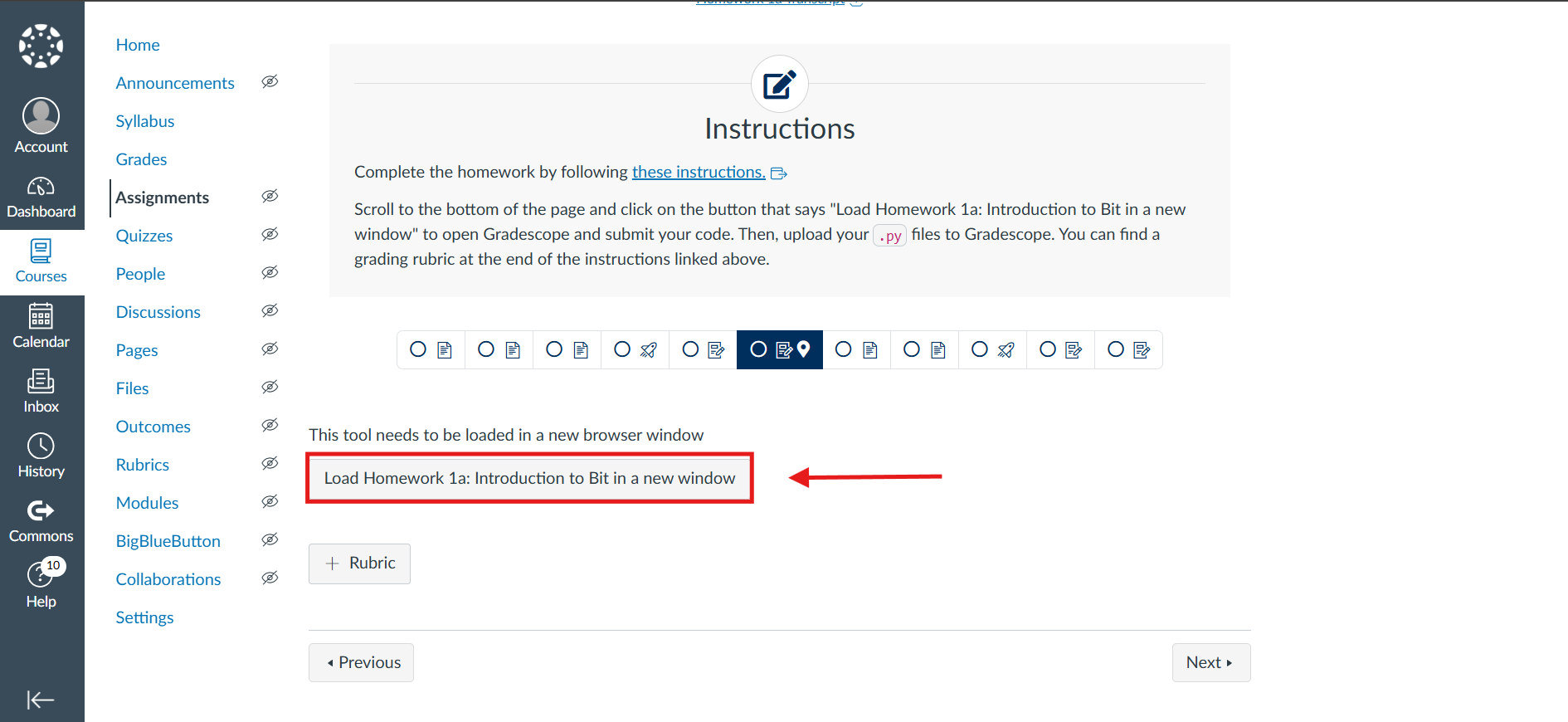
This button does expire, and will prompt you to reload the window when it does. Reloading the canvas page will reload the gradescope button.
Once pressed, the button will redirect you to a different website, where a submission box will pop up. It should look something like this:
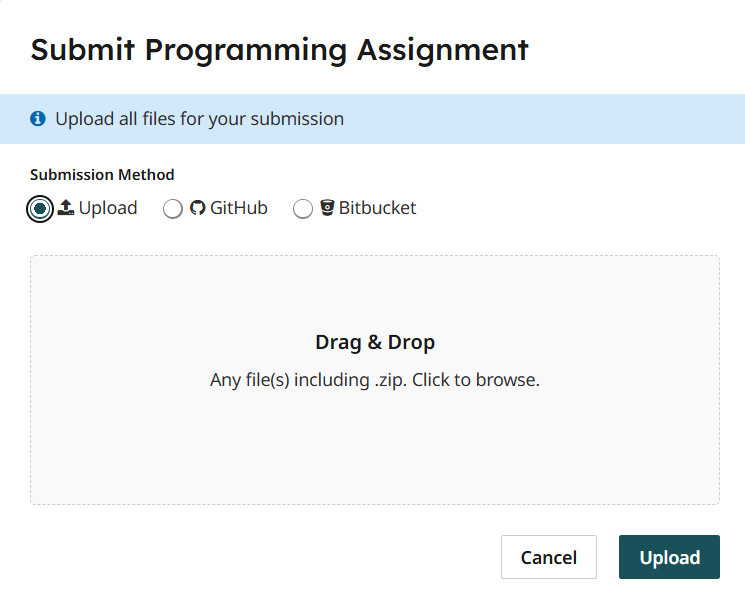
Click inside the box saying Drag and Drop, and it will open a file browser on your computer. Navigate to the desired submission folder, and then select the files you want to submit. Throughout the class, the files you will need to submit will always end with .py. In the example below, I have selected all the .py files for Lab 1a (note, however, that this is for example purposes only, and you will not be required to submit code from labs to gradescope. See lab instructions in canvas for additional submission instructions).
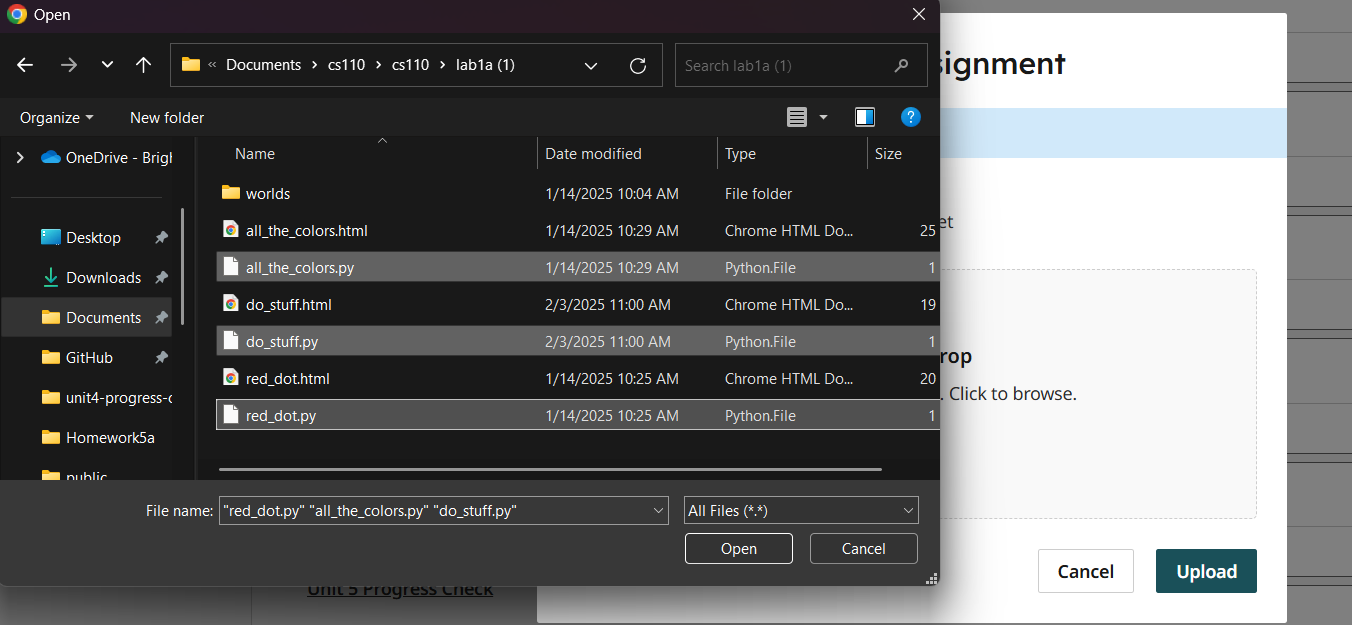
Once you have selected the desired files, you can click open at the bottom of the file explorer. Alternatively, you can simply drag and drop the files from the file explorer into the submission box. Starting in Unit 3, we will provide you with test files as part of the assignment. You do not need to submit test files to gradescope, only code that you write.
Once you drag and drop your files, or select your files and push open, it should look something like this:
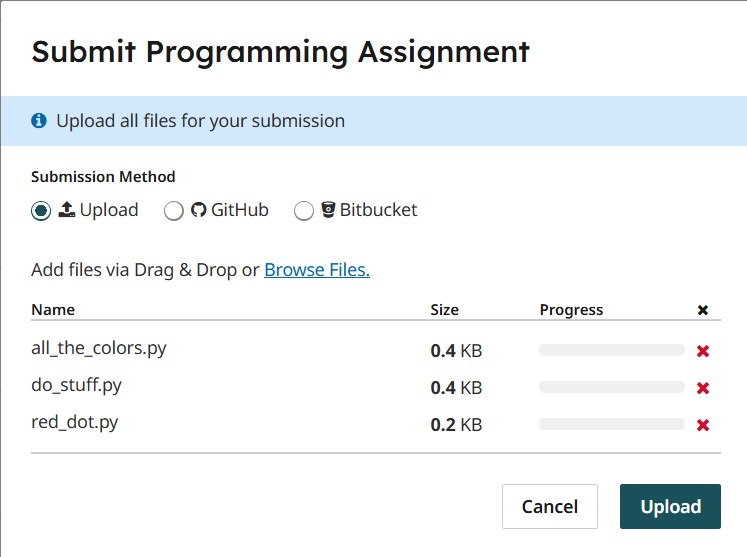
From here, simply press the upload button. Gradescope will then upload your files and begin running the autograder.
Please wait for the autograder to finish running before closing the tab! If you close the tab early, it can sometimes cause issues where the autograder does not run. If this happens, you will not receive points for completing the assignment.
After the autograder runs, you should see something similar to this:
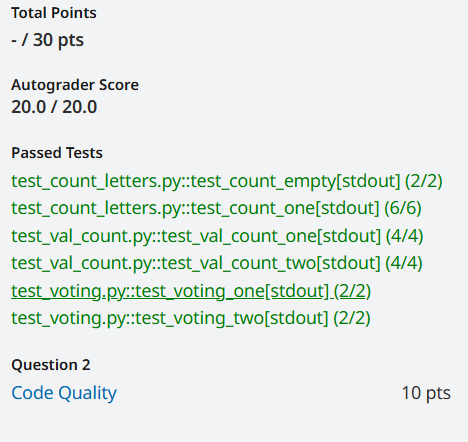
Passed tests will be displayed in green, and failed tests will be displayed in red. The total score, while currently empty, will update once the Code Quality grading has been done. This is manual grading, which a TA will grade.
Resubmissions to gradescope are allowed, as often as is necessary. Simply press the Resubmit button at the bottom right of the screen.
Other Notes
- Run all tests locally on your computer before submitting to gradescope! Gradescope uses the same tests, so running your tests locally first will allow you to fix issues and save time in the long run.
- If the tests pass on your computer, but fail on gradescope, check for extra
importstatements. Extra import statements at the top of your file can cause the autograder to crash, so if they are present remove them. There are imports such asfrom byubit import Bitandimport systhat we do use in this class, and these will not cause issues. Additional import statements sometimes show up as PyCharm attempts to assist you in writing your code. - If you experience any issues with gradescope or submissions, please reach out to the TAs through the Help Queue.